
How to Install Games on Retroid Pocket 3 Plus - What Surprised Me Most
If you’re diving into the world of portable retro gaming, the Retroid Pocket 3 Plus is a fantastic handheld console that combines nostalgia with modern convenience. I’ve spent quite some time setting up mine, and I want to share a detailed, easy-to-follow guide on how to install games on your Retroid Pocket 3 Plus. Whether you’re a seasoned gamer or new to retro emulation, understanding the game installation process is essential to get the most out of this powerful device. From organizing your ROM files to configuring emulators and scanning your game library, every step matters for a seamless gaming experience. In this guide, I will walk you through the entire process, touching on key topics like creating ROM folders, transferring game files via USB or microSD card, setting up RetroArch cores, and optimizing your library with box art and metadata. This approach ensures your Retroid Pocket 3 Plus runs smoothly, giving you quick access to your favorite classics while keeping everything neatly organized. Let’s get started with the essential steps you need to know for a straightforward and enjoyable game installation!
Handheld Retro Consoles | Shop Now

Retro Game Nintendo Cartridge | Retro Game Sega Cartridge | Retro Game PlayStation | Retro Game Xbox | Retro Game Atari Cartridge | Retro Game PC DOS Classics | Retro Game Arcade Console | Retro Game RPG Cartridge | Retro Game Racing Cartridge
Preparing Your Retroid Pocket 3 Plus for Game Installation
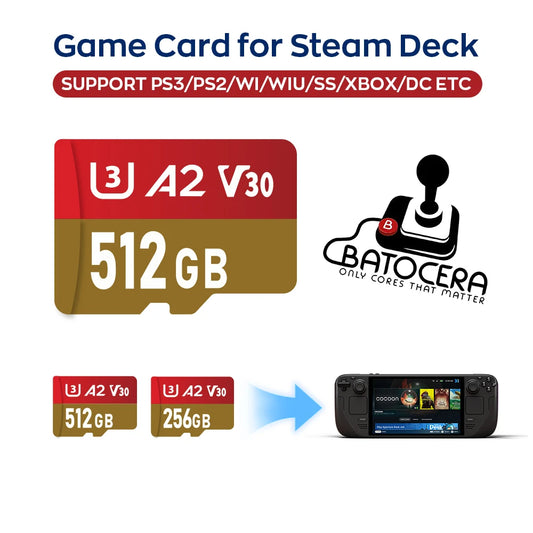
Before adding games, you need to prepare your device. The Retroid Pocket 3 Plus provides 128 GB of internal memory, expandable via a microSD card (up to 512 GB or more). For best performance and space, I recommend inserting a microSD card.
Setting Up the microSD Card
-
Power off your device.
-
Pop open the microSD card slot on the side and gently insert your microSD card until it clicks.
-
Power on the device, then navigate to Settings > Storage to ensure your card is recognized.
The system will automatically generate the correct folder structure for game storage once recognized.
Atari Retro Consoles | Shop Now

Retro Game Portable Consoles | Retro Game Handheld Systems With Built | Retro Game Plug And Play Consoles | Retro Game Sticks | Retro Game Raspberry Pi Consoles | Retro Game All In One Consoles | Retro Game Wireless Consoles | Retro Game Emulators | Retro Game Emulator Consoles | Retro Game Hard Drives
Creating ROM Folders and Transferring Games
You can install games either by removing the microSD card and transferring files with a computer, or by connecting your Retroid Pocket 3 Plus to your PC via USB cable with the device in file transfer mode.
Step-by-Step Transfer Process
-
Hold the power button and select Power Off.
-
Remove the microSD card and insert it into your PC’s card reader, or connect the device with a USB cable and select File Transfer mode on the Retroid.
-
Open the RetroPocketGames folder on your storage device.
-
Here you’ll find subfolders such as ROMs, BIOS, and Ports.
-
Copy your game ROM files into the relevant ROMs subfolder based on the system (e.g., NES, SNES, Game Boy).
-
For BIOS system files (required for specific consoles), place them in the BIOS folder.
-
-
Safely eject the microSD card or disconnect the USB once files transfer is complete.
Sega Retro Games | Shop Now

Retro Game NES 8 Bit 72 Pin Card | Retro Game NES SNES | Retro Game Sega Genesis Mega Drive | Retro Game Nintendo 64 GameCube | Retro Game PlayStation 1-2 | Retro Game Atari Consoles | Retro Game Classic Mini Consoles | Retro Game Boy Advance | Retro Game PSP PS Vita Classics | Retro Game Best Handheld Console
Setting Up RetroArch and Emulator Cores
The Retroid Pocket 3 Plus uses RetroArch as a core emulator platform, which requires specific emulator “cores” to run different consoles.
-
Open RetroArch on your device.
-
Navigate to Online Updater > Core Updater.
-
Download the emulator cores for the systems you wish to play (NES, SNES, PS1, etc.).
-
Once installed, RetroArch can auto-detect the appropriate core when launching a game, but you can also assign cores manually if you prefer.
Scanning and Organizing Your Game Library
After transferring your games, you need to scan and load ROMs into the device’s launcher.
-
Open the launcher menu.
-
Add the folder containing your ROMs to the game paths.
-
Select Scan to populate your game list.
-
The system will scan all games and download box art and metadata if you’re connected to Wi-Fi, enhancing your library’s visual appeal.
This scanning step is crucial for efficient navigation and a clean user interface.
PlayStation Retro Games | Shop Now

Retro Game Controllers Accessories | Retro Game Storage Box | Retro Game Gameboy GBA Parts | Retro Game Console Dismantling Tools | Retro Game Nintendo NDS 3DS Accessories | Retro Game PSP Accessories Parts | Retro Game Neo Geo Pocket Accessories Parts | Retro Game Console Shell Parts | Retro Game Replacement LCD Screen
Additional Tips for a Smooth Gaming Experience
-
If some games don’t appear, you can run a more in-depth scan through the launcher.
-
Keep BIOS files updated to avoid emulator errors.
-
Use standalone emulators (e.g., PPSSPP for PSP) alongside RetroArch for better compatibility.
-
Regularly back up your microSD card to avoid data loss.
With these steps, installing games on your Retroid Pocket 3 Plus becomes an organized and enjoyable process. This approach ensures your portable retro gaming setup is efficient, visually appealing, and ready to provide countless hours of classic fun on the go.
If you ever need to add new games, simply repeat the transfer and scanning processes. Happy gaming!
Retro Games Collections
Retro Game Display Box | Retro Game TPU Sleeve | Retro Game Wonderswan Parts | Retro Game Acrylic Display Box | Retro Game Video Posters | Retro Game Video T Shirts | Retro Game Video Artwork Decor | Retro Game Board Card | Retro Game Toys Collectibles