
How to Add Games to Retroid Pocket 2 - Worth Knowing Before You Buy
If you’re diving into the world of retro gaming with the Retroid Pocket 2, one question almost always comes up: how do I add games to this fantastic handheld?
As someone who's spent a good amount of time mastering this device, I’m here to guide you through the process with clear, practical steps. Whether you're new to the Retroid Pocket 2 or looking to expand your collection, this guide covers everything you need to know to get your favorite retro games up and running smoothly.
From preparing your game files to using the Retroid OS interface, this walkthrough is packed with essential tips, best practices, and reliable methods to ensure you have a seamless experience.
Adding games to the Retroid Pocket 2 involves more than just loading ROMs; it requires understanding how to manage your files correctly and optimizing the device settings for the best gameplay experience. You'll learn about file transfer techniques, supported formats, and how to organize your games within the Retroid OS.
Plus, I’ll cover how to troubleshoot common hiccups and enhance your gaming setup with emulator features and custom configurations. With this knowledge, you’ll feel confident navigating your Retroid Pocket 2 like a pro. Let’s get started with the most straightforward approach to adding games and uncover some advanced tips along the way to supercharge your retro gaming adventures.
Adding Games to Retroid Pocket 2: Step-by-Step Guide
Handheld Retro Consoles | Shop Now

Retro Game Nintendo Cartridge | Retro Game Sega Cartridge | Retro Game PlayStation | Retro Game Xbox | Retro Game Atari Cartridge | Retro Game PC DOS Classics | Retro Game Arcade Console | Retro Game RPG Cartridge | Retro Game Racing Cartridge
Understanding Supported Game Formats and Emulators
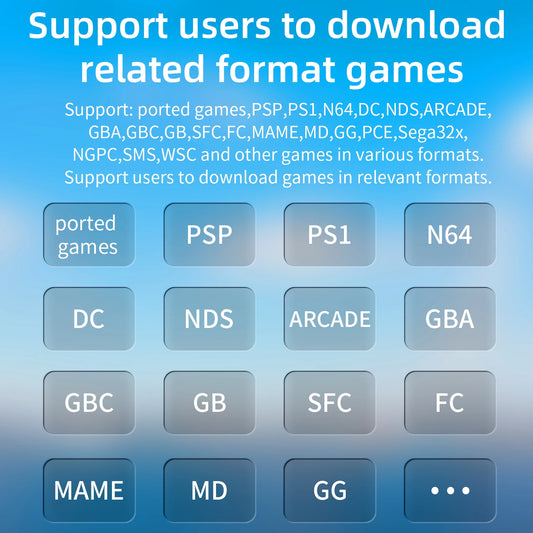
The Retroid Pocket 2 runs Retroid OS, a Linux-based operating system optimized for emulation. It supports a wide range of emulator cores compatible with popular systems like NES, SNES, Game Boy, Game Boy Advance, PlayStation 1, and more. Before adding games, it’s crucial to ensure your game files (ROMs or ISOs) are in compatible formats such as .nes, .sfc, .gb, .gba, .bin, or .iso. Organizing your games by system into folders helps streamline navigation and makes the system recognize them efficiently.
Atari Retro Consoles | Shop Now

Retro Game Portable Consoles | Retro Game Handheld Systems With Built | Retro Game Plug And Play Consoles | Retro Game Sticks | Retro Game Raspberry Pi Consoles | Retro Game All In One Consoles | Retro Game Wireless Consoles | Retro Game Emulators | Retro Game Emulator Consoles | Retro Game Hard Drives
Transferring Games to Your Retroid Pocket 2
Method 1: USB File Transfer
-
Connect Retroid Pocket 2 to your PC using a USB cable.
-
Select the “File Transfer” or “Media Transfer” option on your device when prompted.
-
Your Retroid Pocket 2 will appear as a USB storage device on your computer.
-
Navigate to the "RetroidGames" or similarly named folder.
-
Create subfolders named after gaming consoles (e.g., NES, SNES, PS1).
-
Copy your game files into their respective folders.
-
Safely eject the device and disconnect.
Method 2: MicroSD Card Transfer
-
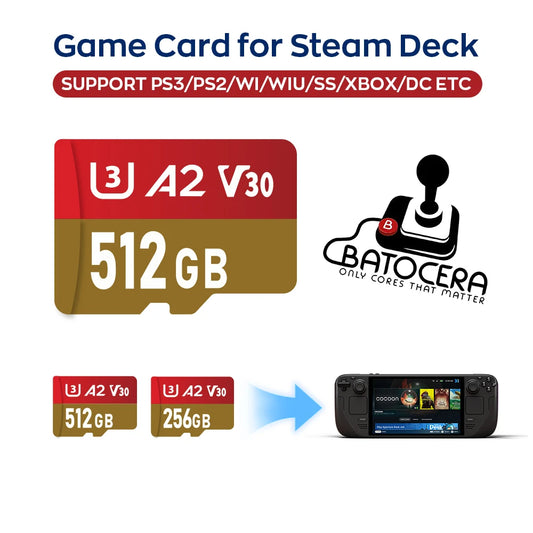
Remove the MicroSD card from your Retroid Pocket 2.
-
Use an SD card reader to connect it to your computer.
-
Copy your games into the appropriate system folders on the MicroSD card.
-
Insert the MicroSD card back into your device.
Sega Retro Games | Shop Now

Retro Game NES 8 Bit 72 Pin Card | Retro Game NES SNES | Retro Game Sega Genesis Mega Drive | Retro Game Nintendo 64 GameCube | Retro Game PlayStation 1-2 | Retro Game Atari Consoles | Retro Game Classic Mini Consoles | Retro Game Boy Advance | Retro Game PSP PS Vita Classics | Retro Game Best Handheld Console
Scanning and Loading Games in Retroid OS
Once your games are transferred, turn on your Retroid Pocket 2 and navigate to the Retroid OS main menu:
-
Go to the "Games" or "Emulator" section.
-
Use the scan or refresh option to detect new games added to your directories.
-
Your games should now appear categorized by system. Select a game to launch it with the corresponding emulator.
PlayStation Retro Games | Shop Now

Retro Game Controllers Accessories | Retro Game Storage Box | Retro Game Gameboy GBA Parts | Retro Game Console Dismantling Tools | Retro Game Nintendo NDS 3DS Accessories | Retro Game PSP Accessories Parts | Retro Game Neo Geo Pocket Accessories Parts | Retro Game Console Shell Parts | Retro Game Replacement LCD Screen
Optimizing Your Experience
-
Customize emulator controls via the settings menu for the most comfortable gameplay.
-
Setup save states and rewind features for enhanced playability.
-
Install updates to the Retroid OS regularly to ensure compatibility with newer games and features.
-
Consider optimizing your game file size and ROM formats for better performance.
Troubleshooting Common Issues
-
If your games don’t appear, double-check that your files are in supported formats and placed in correct folders.
-
Re-scan your game library if new files don’t show up immediately.
-
Ensure your MicroSD card is properly formatted (usually FAT32 or exFAT).
-
Update or reinstall emulator cores if games fail to load.
Adding games to the Retroid Pocket 2 is straightforward once you get familiar with the process. Using USB or MicroSD transfers and organizing your games properly are key steps that make your gaming experience enjoyable and hassle-free. With a little setup, you will enjoy thousands of classic titles on the go, embracing the nostalgia with modern convenience. Happy gaming!
Retro Games Collections
Retro Game Display Box | Retro Game TPU Sleeve | Retro Game Wonderswan Parts | Retro Game Acrylic Display Box | Retro Game Video Posters | Retro Game Video T Shirts | Retro Game Video Artwork Decor | Retro Game Board Card | Retro Game Toys Collectibles
Partner: Fighting Demons Official Website