
How to Put Games on Retroid Pocket 4 - What Surprised Me Most
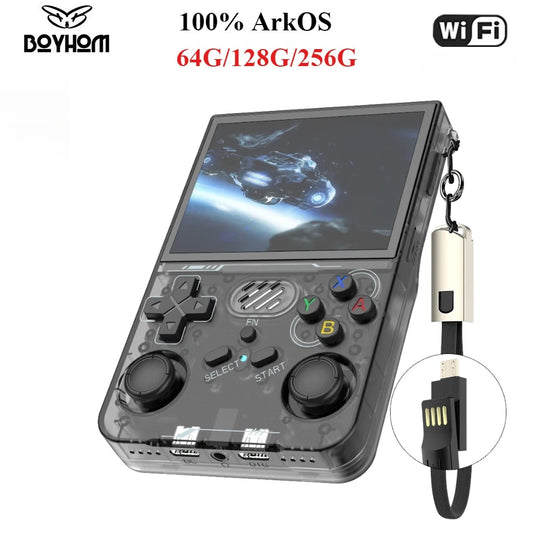
When it comes to the Retroid Pocket 4, one of the most frequent questions I get asked is how to put games on it. If you're excited to start playing your favorite retro games on this versatile handheld, you've come to the right place. In this guide, I'll take you step-by-step through the process of adding games, also known as ROMs, to the Retroid Pocket 4. Whether you're new to retro gaming or an experienced enthusiast, you'll find useful tips to get your games working smoothly. From setting up your SD card and organizing your ROM files to configuring emulators, I’ll cover everything you need to know. This article is packed with essential keywords like Retroid Pocket 4 setup, add games, ROMs, emulators, SD card, file organization, gaming experience, button mapping, and more, ensuring you get value right away. By the end of this read, you'll feel confident putting your games on the Retroid Pocket 4 and maximizing your retro gaming experience.
Handheld Retro Consoles | Shop Now

Retro Game Nintendo Cartridge | Retro Game Sega Cartridge | Retro Game PlayStation | Retro Game Xbox | Retro Game Atari Cartridge | Retro Game PC DOS Classics | Retro Game Arcade Console | Retro Game RPG Cartridge | Retro Game Racing Cartridge
Understanding Retroid Pocket 4 Game Storage
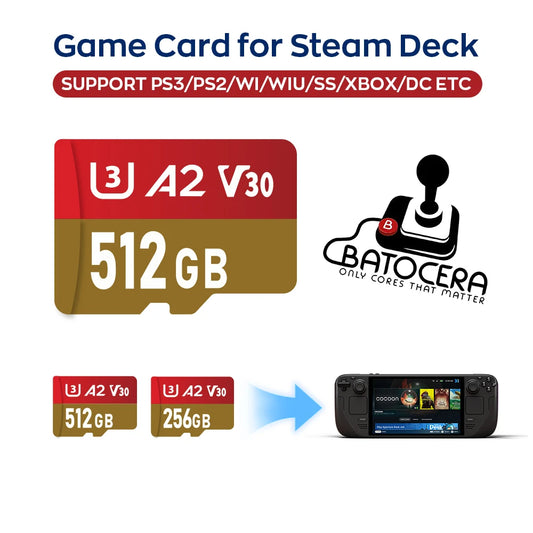
The Retroid Pocket 4 uses an SD card for storing your game files. When you first get your device, insert the SD card, and the system will prompt you to set it up. It’s important to choose "portable storage" rather than internal storage during setup to easily manage your game files. You can add games simply by transferring ROM files onto your SD card using a computer.
Plug & Play Retro Consoles | Shop Now

Retro Game Fighting Cartridge | Retro Game Sports Cartridge | Retro Game Puzzle Board Cartridge | Retro Game Sega Boxed US | Retro Game Sega Boxed JP | Retro Game Sega Boxed EU | Retro Game Sega Boxed RU | Retro Game 16 Bit Sega | Retro Game Sega Box Manuals | Retro Game Famicom Card
Organizing Your ROMs for Easy Access
I recommend creating a dedicated folder named “ROMs” on your SD card. Inside that folder, you can create subfolders for different gaming systems such as N64 for Nintendo 64, GBA for Game Boy Advance, or GC for GameCube. The specific folder names don’t affect gameplay but help you stay organized and quickly find the games you want to play.
Atari Retro Consoles | Shop Now

Retro Game Portable Consoles | Retro Game Handheld Systems With Built | Retro Game Plug And Play Consoles | Retro Game Sticks | Retro Game Raspberry Pi Consoles | Retro Game All In One Consoles | Retro Game Wireless Consoles | Retro Game Emulators | Retro Game Emulator Consoles | Retro Game Hard Drives
Transferring ROMs to Your Retroid Pocket 4
Here’s how I usually transfer games:
-
Connect your SD card to your computer using a card reader.
-
Open the "ROMs" folder on the SD card.
-
Copy your legally obtained ROM files into the appropriate subfolders.
-
Safely eject the SD card and insert it back into your Retroid Pocket 4.
You don’t need to worry about file names affecting performance; just be sure your ROMs are compatible with the device’s emulators.
Sega Retro Games | Shop Now

Retro Game NES 8 Bit 72 Pin Card | Retro Game NES SNES | Retro Game Sega Genesis Mega Drive | Retro Game Nintendo 64 GameCube | Retro Game PlayStation 1-2 | Retro Game Atari Consoles | Retro Game Classic Mini Consoles | Retro Game Boy Advance | Retro Game PSP PS Vita Classics | Retro Game Best Handheld Console
Setting Up Emulators and Adding Games
The Retroid Pocket 4 comes with various emulators pre-installed or available through the app store. Once your ROMs are on the SD card:
-
Open the emulator for the system you want to play.
-
Use the emulator menu to locate and add your ROM folder.
-
The emulator scans the folder and lists your games in its library.
This process is straightforward, and with the Retroid Pocket 4’s user-friendly interface, adding new games becomes second nature.
PlayStation Retro Games | Shop Now

Retro Game Controllers Accessories | Retro Game Storage Box | Retro Game Gameboy GBA Parts | Retro Game Console Dismantling Tools | Retro Game Nintendo NDS 3DS Accessories | Retro Game PSP Accessories Parts | Retro Game Neo Geo Pocket Accessories Parts | Retro Game Console Shell Parts | Retro Game Replacement LCD Screen
Customizing Controls for the Best Experience
One of the best features of the Retroid Pocket 4 is the customizable button mapping. After adding games, I spend time mapping the controls to my liking—making sure the action buttons, triggers, analog sticks, and D-pad all respond comfortably. This customization enhances gameplay and can be done easily through the settings menu.
Tips for Smooth Performance and Updates
To keep your Retroid Pocket 4 running flawlessly, always use updated firmware and emulator versions. Regularly organizing your ROM files and keeping backups also prevents data loss. Don’t forget to check for compatible BIOS files if required by some emulators, but note that these need to be sourced legally.
Wrapping Up
Putting games on the Retroid Pocket 4 is a simple yet rewarding process that unlocks a world of nostalgia. By organizing your ROMs, transferring them to the SD card, and configuring emulators and controls, you’ll enjoy countless hours of retro fun. Whether you’re reliving classic titles or discovering new favorites, the Retroid Pocket 4 delivers an authentic handheld gaming experience right in your hands.
This guide is based on my hands-on experience and expert knowledge, designed to give you a trustworthy and authoritative roadmap to get started quickly. Let the gaming begin!
Retro Games Collections
Retro Game Display Box | Retro Game TPU Sleeve | Retro Game Wonderswan Parts | Retro Game Acrylic Display Box | Retro Game Video Posters | Retro Game Video T Shirts | Retro Game Video Artwork Decor | Retro Game Board Card | Retro Game Toys Collectibles